




Multi-step forms look simple on the surface, but often hide the real reasons visitors abandon sign-ups or checkouts halfway through. Without clear data, businesses are left guessing which questions confuse people or where they lose interest. This guide breaks down how to use GA4 and GTM together to track every step, spot hidden drop-offs, and turn more visitors into paying customers, with practical insights from our real case.



Standard Google Analytics 4 (GA4) reports usually show only basic events, such as session_start (session start), form_start (form started), and form_submit (form submitted). However, there can be many intermediate steps and interactions between these points. Without capturing such information, it’s impossible to understand how customers progress through the form, where they might run into issues, and why they don’t complete it.
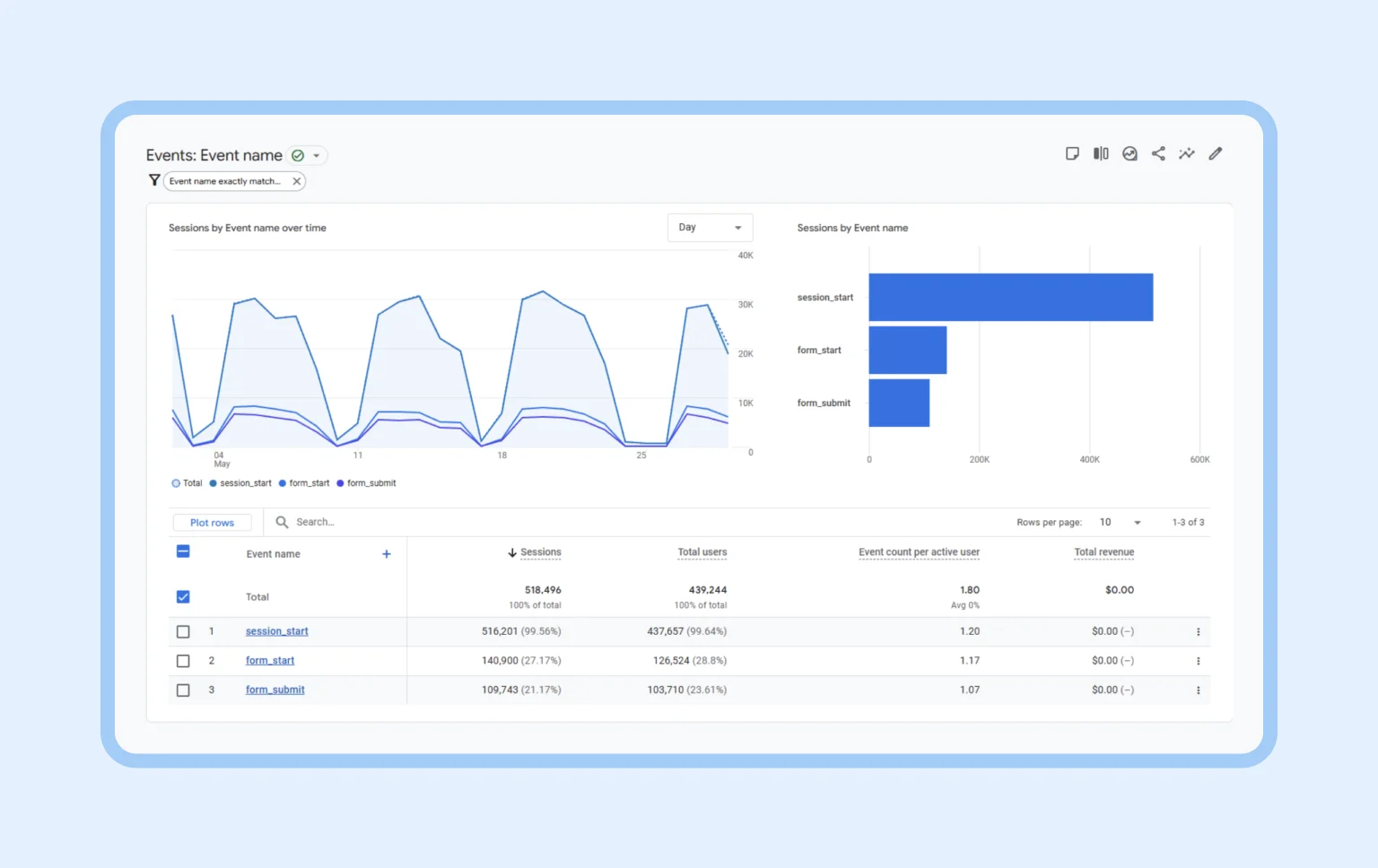
So how do you get the full picture? The key is combining a combination of Google Tag Manager (GTM) and GA4 to collect detailed data for every stage of the form. GTM can trigger custom events whenever a user moves to the next step. GA4 captures these events to build funnel reports that show how people progress through each stage.
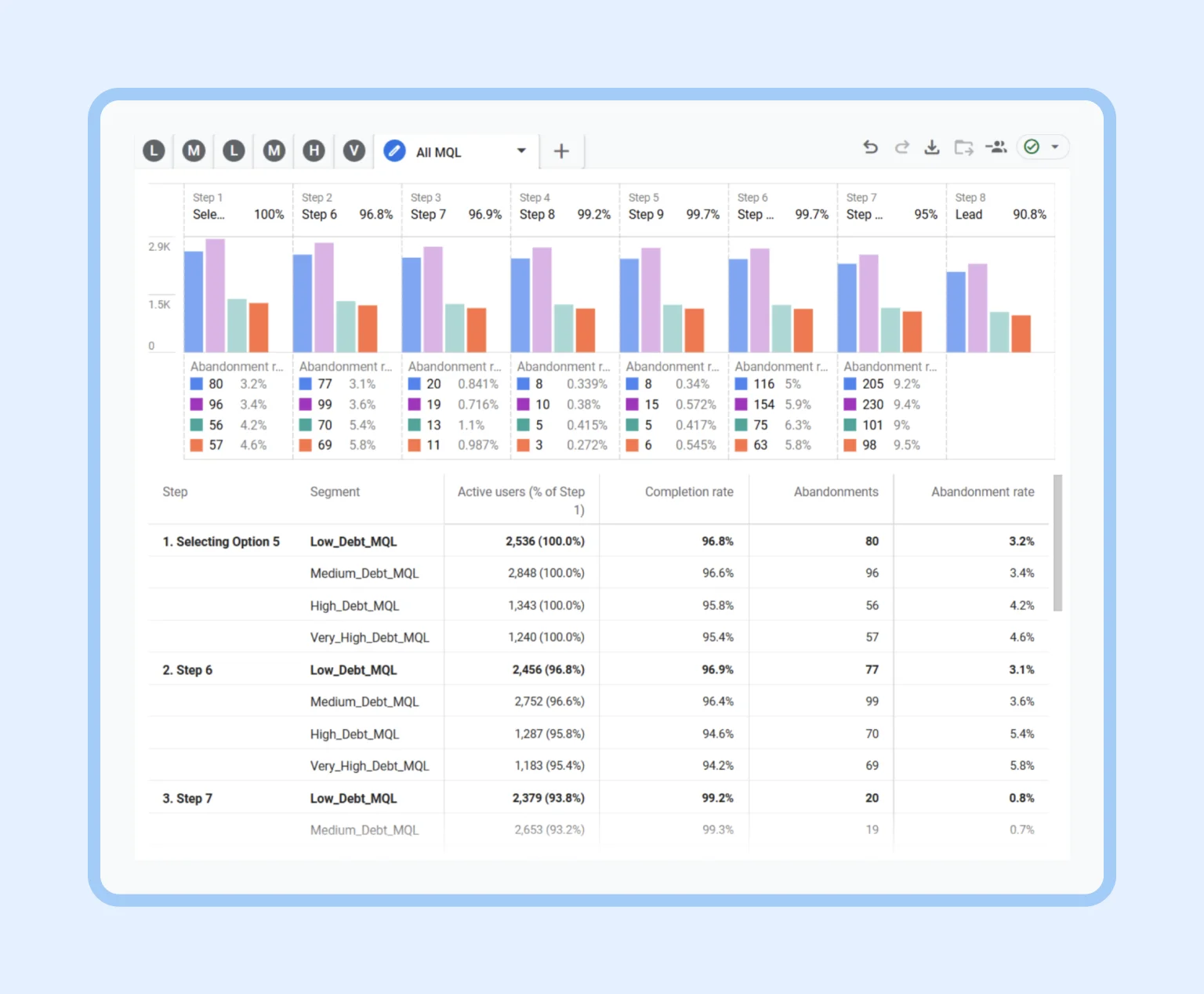
In the following sections, we’ll explain in detail how to set up this integration in practice, from configuring events in GTM to building a custom funnel in GA4. We’ll cover each step needed to ensure that every stage of the form is tracked properly and highlight important technical points to help you collect accurate and meaningful data.
The hidden complexity of form analytics
Why is it important to track every step of a form? If a form has multiple stages, each one can affect conversion differently. For example, a confusing or overly complex question at any point may discourage some users from continuing.
Imagine a car rental booking process: first, the customer selects the type of vehicle, then adds extra options, and only after that proceeds to confirm the reservation. If it’s unclear why a particular option — such as insurance or a fuel policy — is necessary, the user may abandon the process before reaching the final step. By tracking each stage, the business can see what percentage of customers complete each part of the journey and where drop-offs occur. This helps identify problem areas in the form flow and provides clear direction for improvement.
Difficulties when setting up funnels in GA4
Unlike Universal Analytics, GA4 does not have traditional goals with a built-in visual funnel. Instead, you need to configure the step sequence manually using the Explorations section. This creates a few challenges:
- You must set up event tracking for each step in advance. GA4 cannot retroactively build a funnel if intermediate events were not collected from the start.
- This tool’s interface for building funnels can seem complicated at first: you need to define the right conditions for each step, specifying which event or parameter represents it. It should also be taken into account that threshold values and the data update delay are peculiar to GA4. Events don’t appear in reports instantly. It can take a few minutes in real-time views and up to 24 hours in standard reports. If the data volume is low, GA4’s aggregation rules may also hide some results temporarily. This makes careful configuration and thorough testing essential.
What we did to solve the tracking gap
Enabling detailed tracking of each form step is crucial. To achieve this goal, the following actions were taken:
1. Access to GA4 and GTM accounts. First, we made sure the team had admin access to the relevant GA4 property and the GTM container linked to the website. This is necessary to create new tags, triggers, and events, and to verify that the data is being collected correctly.
2. Audit of the current setup. Next, the existing analytics setup was reviewed to see if any events or goals were already in place and to understand how the form works technically. For example, it was determined that the form loads dynamically on a single page. Using GTM’s Preview Mode and the DebugView report in GA4, it became clear which interactions were already being tracked as customers moved through the steps. This audit highlighted gaps in the data that needed to be filled with additional events.
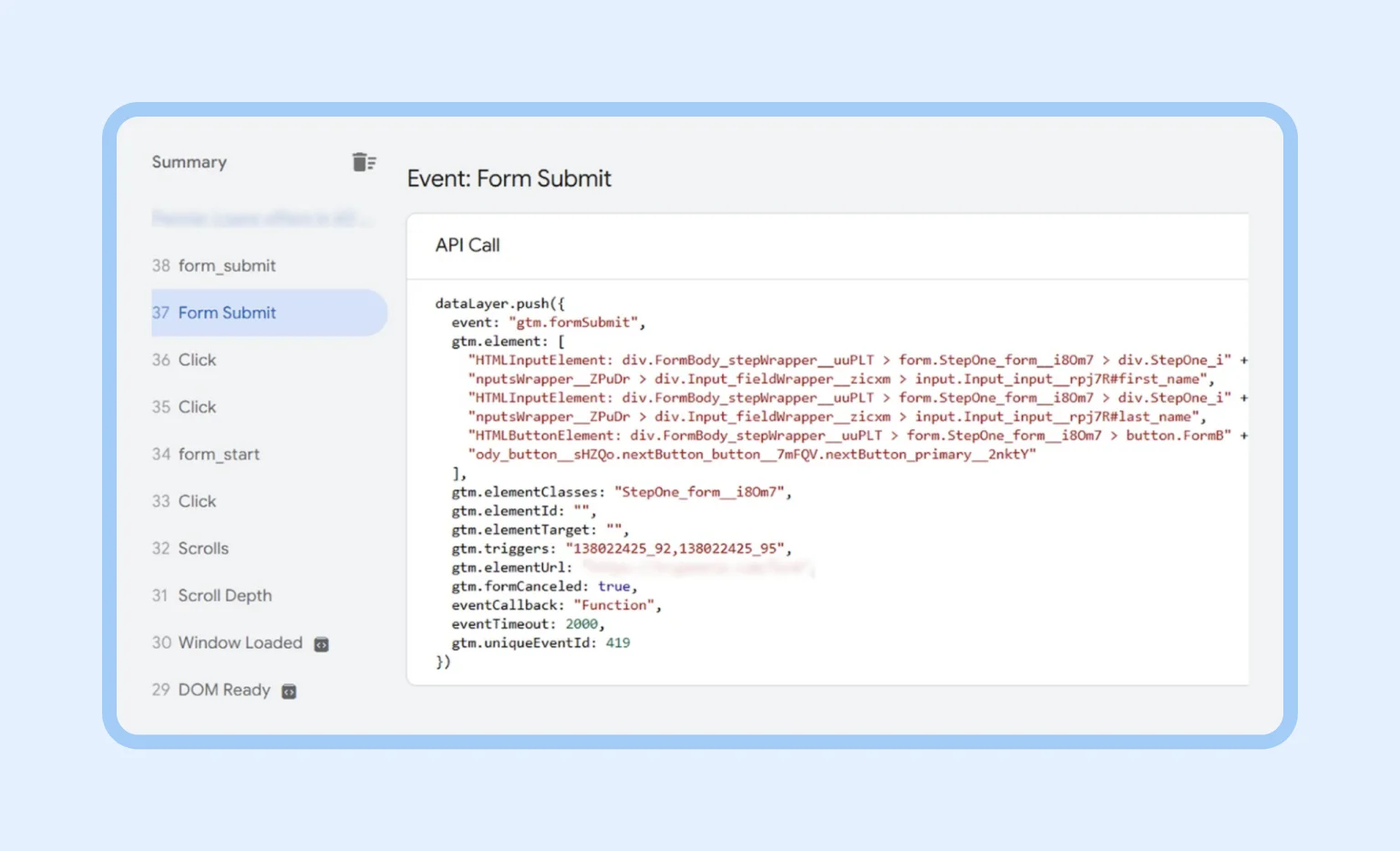
3. Configuring events in GTM for each form step. At this stage, we set up custom events to fire when a user completes each following steps:
a. A separate trigger was created in GTM per stage of the form. In most cases, the simplest approach is to link it to the click on the “Next” button that moves the user to the following step. For example, for step 1, the trigger fires when the “Next” button is clicked on the first screen. Since the page is dynamic and doesn’t have a unique URL for each step, we rely on existing “Click” events and the element’s content. An example of a custom JavaScript function that determines the form step will be shown below.
b. Then, each trigger was linked to a GA4 Event tag. In the tag configuration, we specified the event name to indicate the step — in our case, it’s “step”, and for the final submission stage, the event is named “Lead.”
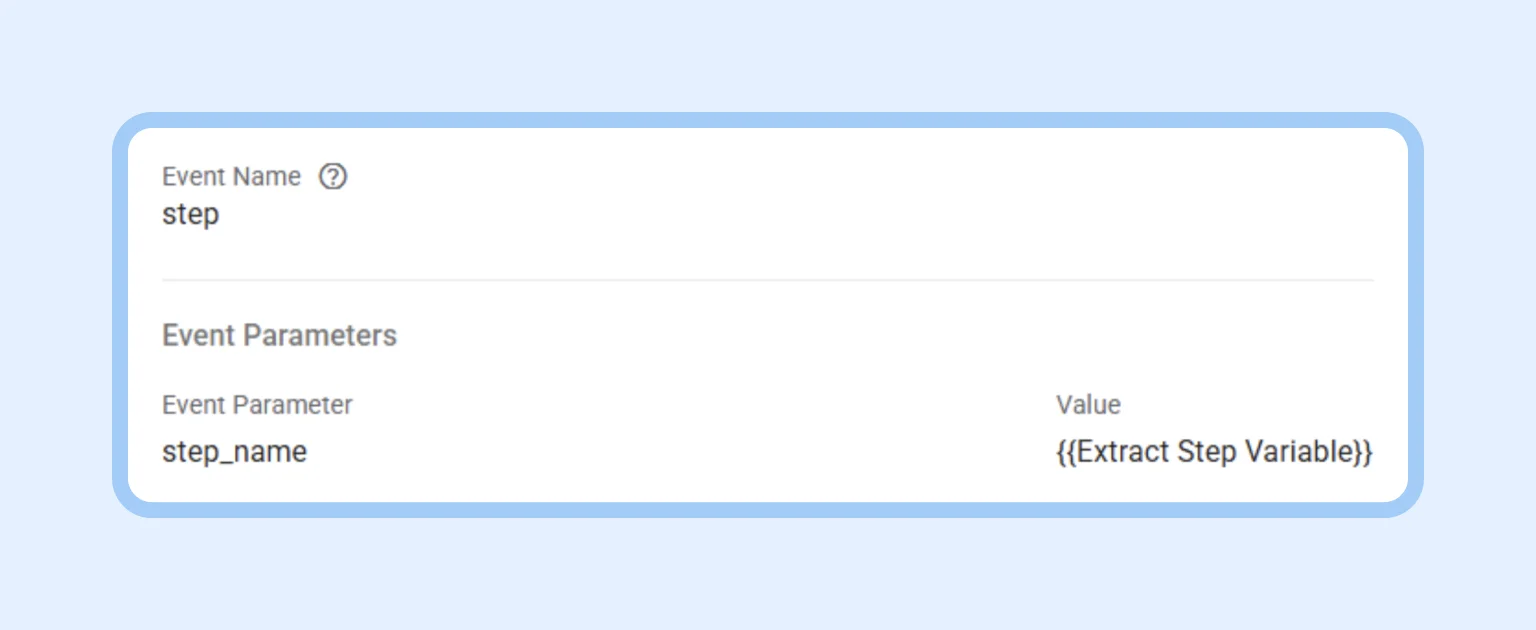
c. For each “step” event, we added a parameter called step_name, which uses custom JavaScript to assign the form’s class name as its value. This makes it possible to capture a unique step identifier even when the page content changes dynamically. This naming approach lets GA4 show exactly which part of the form the user completed.
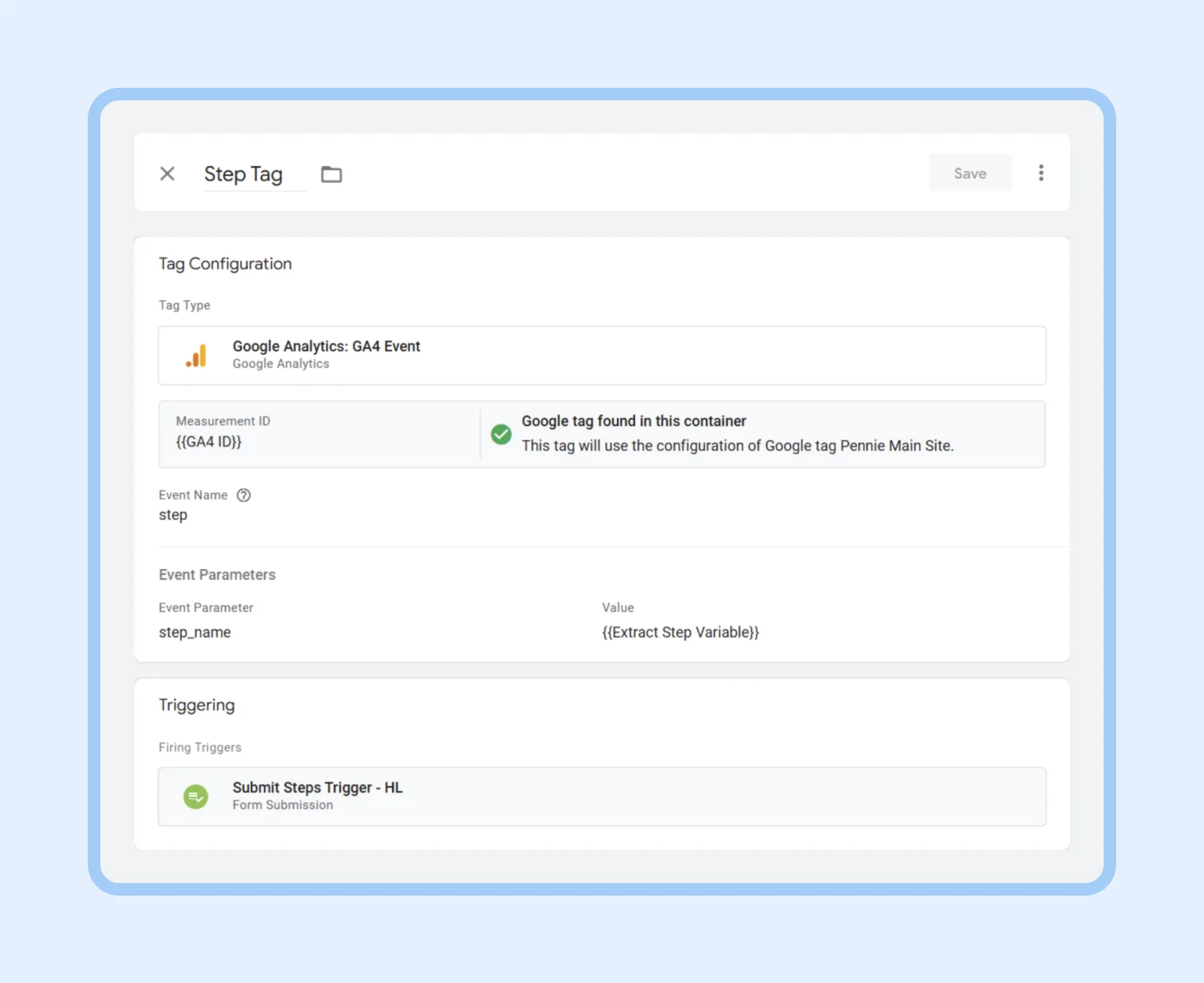
d. Using custom JavaScript to define a tag parameter — below is an example of a custom JavaScript function that determines which form step the user is on when an action occurs.
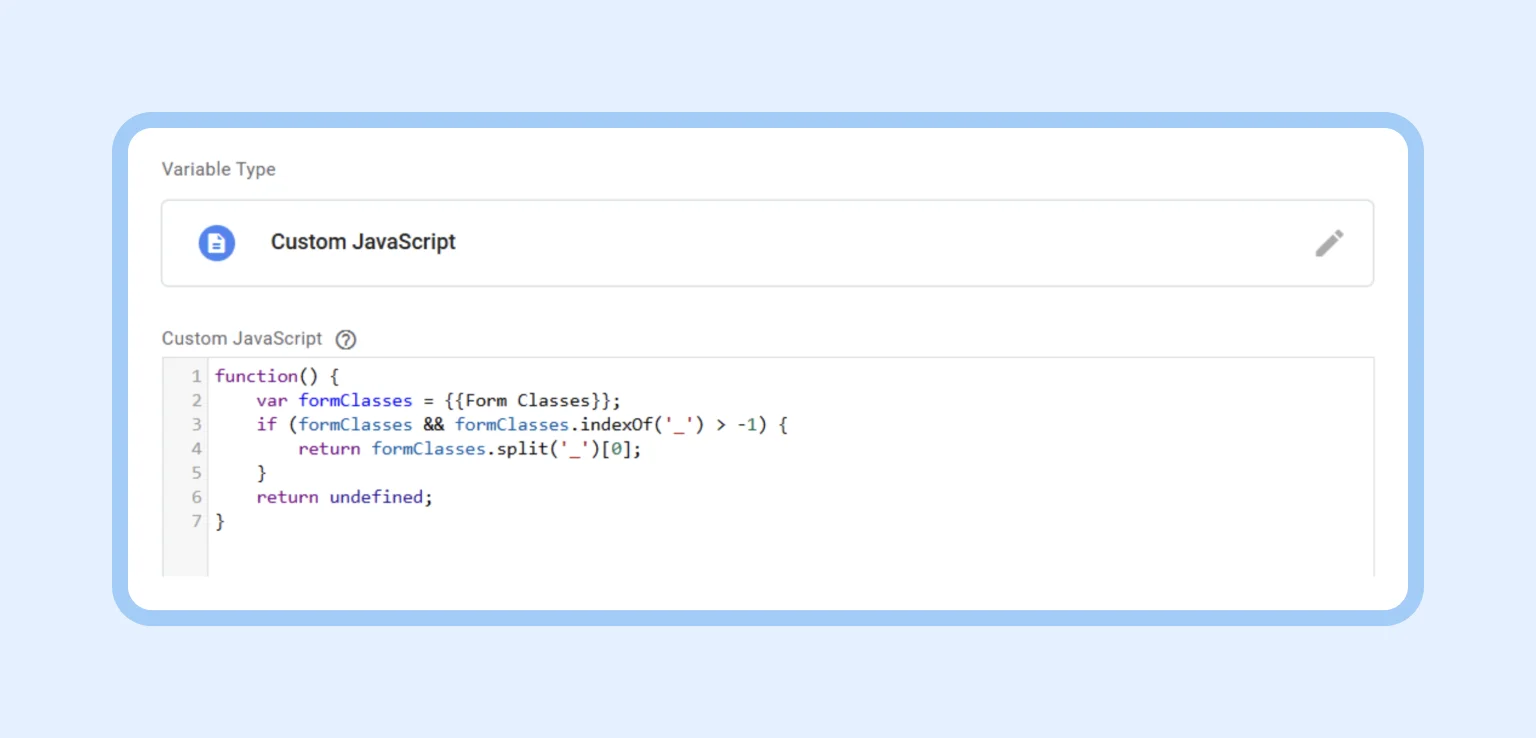
The main purpose of this script is to extract the first part of a string that contains the form’s classes separated by an underscore (_). This method was chosen because we know for sure that the step identifier always includes an underscore, making it easy to distinguish from other classes.
We retrieve data from a GTM variable named “Form Classes”, check that it exists and contains the expected underscore delimiter, then split the string and return the first part. If the variable doesn’t exist or doesn’t include an underscore, the function returns undefined. For example, a form class like StepTwo_form__OsyiA is converted to the step name StepTwo.
e. Capturing the user’s selection on a step — we also configured additional event parameters to collect more context. For instance, if a user selects an answer option on a particular step, it’s helpful to record that choice too. To achieve this, we added custom JavaScript in GTM that reads the selected value and sends it as an event parameter named “step_option.”
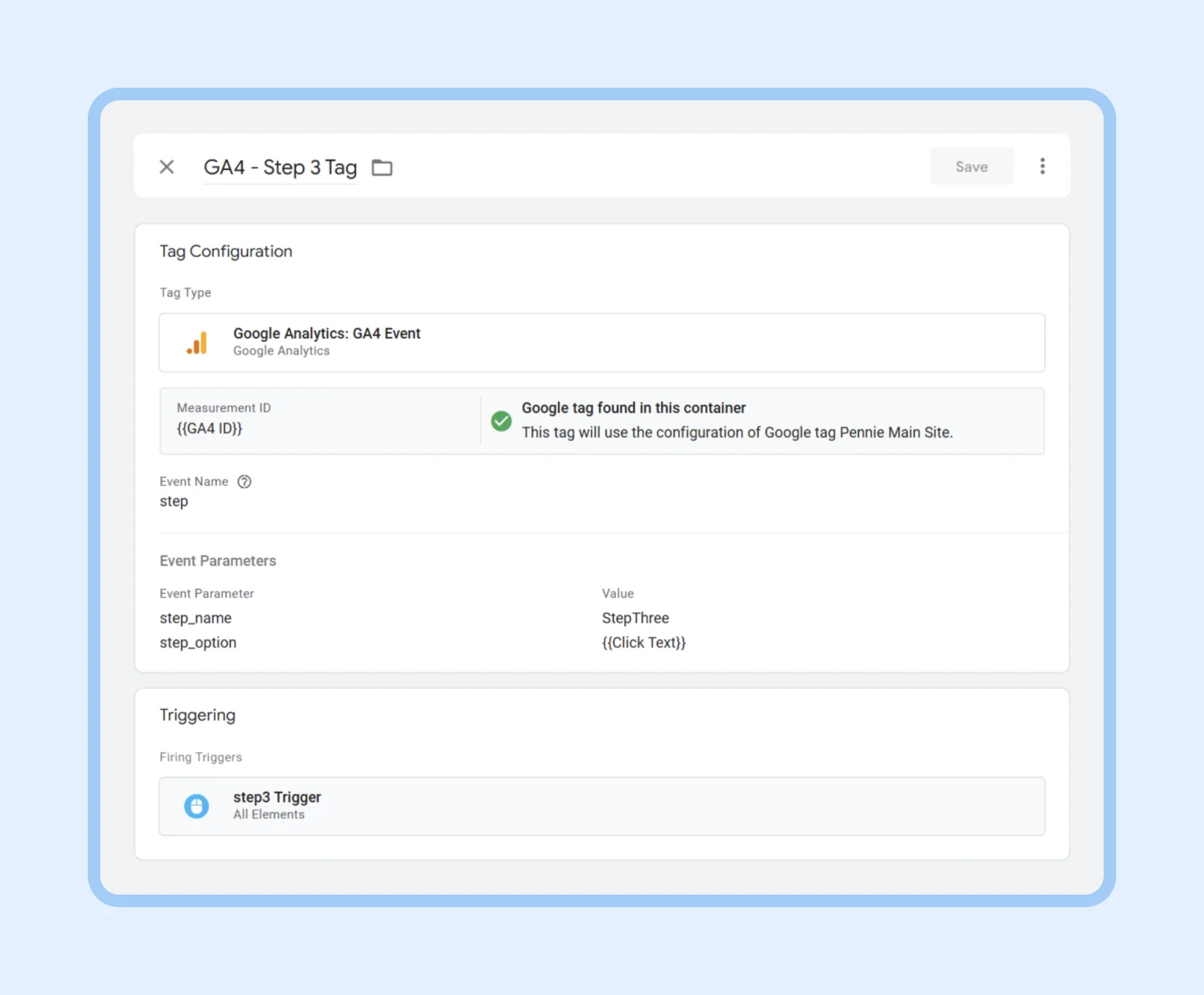
4. Creating funnel reports in GA4. Once the custom step tracking started appearing in GA4, we moved on to building the funnel itself:
a. In the GA4 interface, under Explorations, we selected the Funnel technique to create a custom report. We then defined the funnel steps to match the form stages. For each one, we specified an event condition: for example, the first step is the form_start event (when the form is started), the second is step_name = "Step 1", the third is step_name = "Step 2", and so on, with the final step being Lead. This setup allows GA4 to track the entire path from the initial form interaction to submission, recording each stage as a separate event.
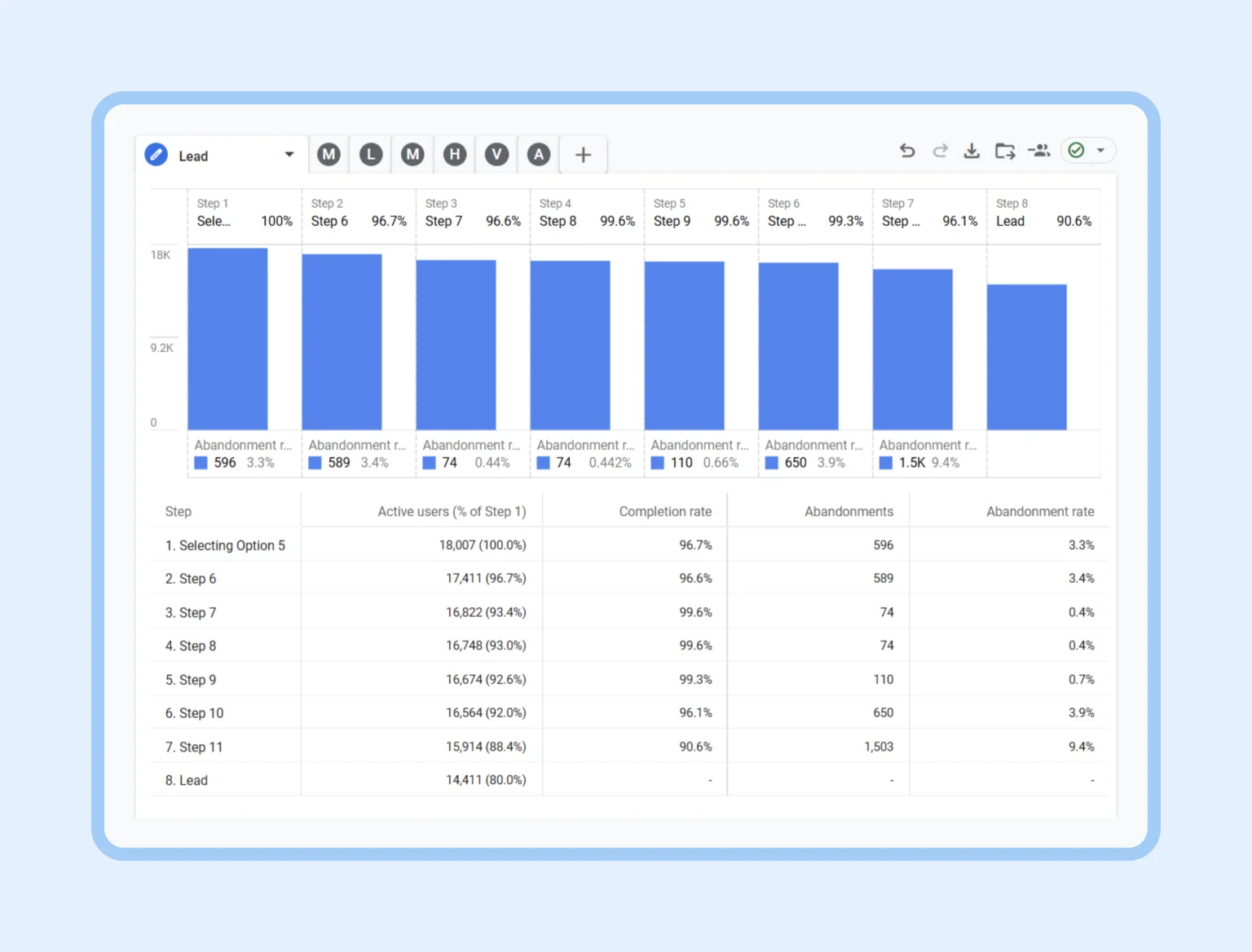
b. We made sure the funnel was set up as closed (sequential), since it’s important to count only those users who started from the first step. A closed funnel means that entry is allowed only through the first step, and customers are counted at each subsequent stage only if they have completed the previous one. An open funnel (where a user could enter at step two or later) is not suitable here because we want to analyze the full completion path from start to finish.
c. Form paths with variations: our form allows for alternative flows (the path can branch based on the user’s answer), and this was taken into account when configuring the funnel. In our case, we created several separate funnels for different scenarios. For this specific case, all steps are sequential and required for every user.
d. Setting parameters and conditions: in the funnel step definitions, we used event parameters. For example, if there are multiple forms on the site, it makes sense to include a form ID or name (for instance, a form_name parameter) with each event. The next action is to apply a filter in the funnel report to include only events for the relevant form. In our setup, the step events were unique to this specific form, so no additional filter was needed.
e. After defining all steps and conditions, we generated the final funnel report.
The outcome of our tracking setup
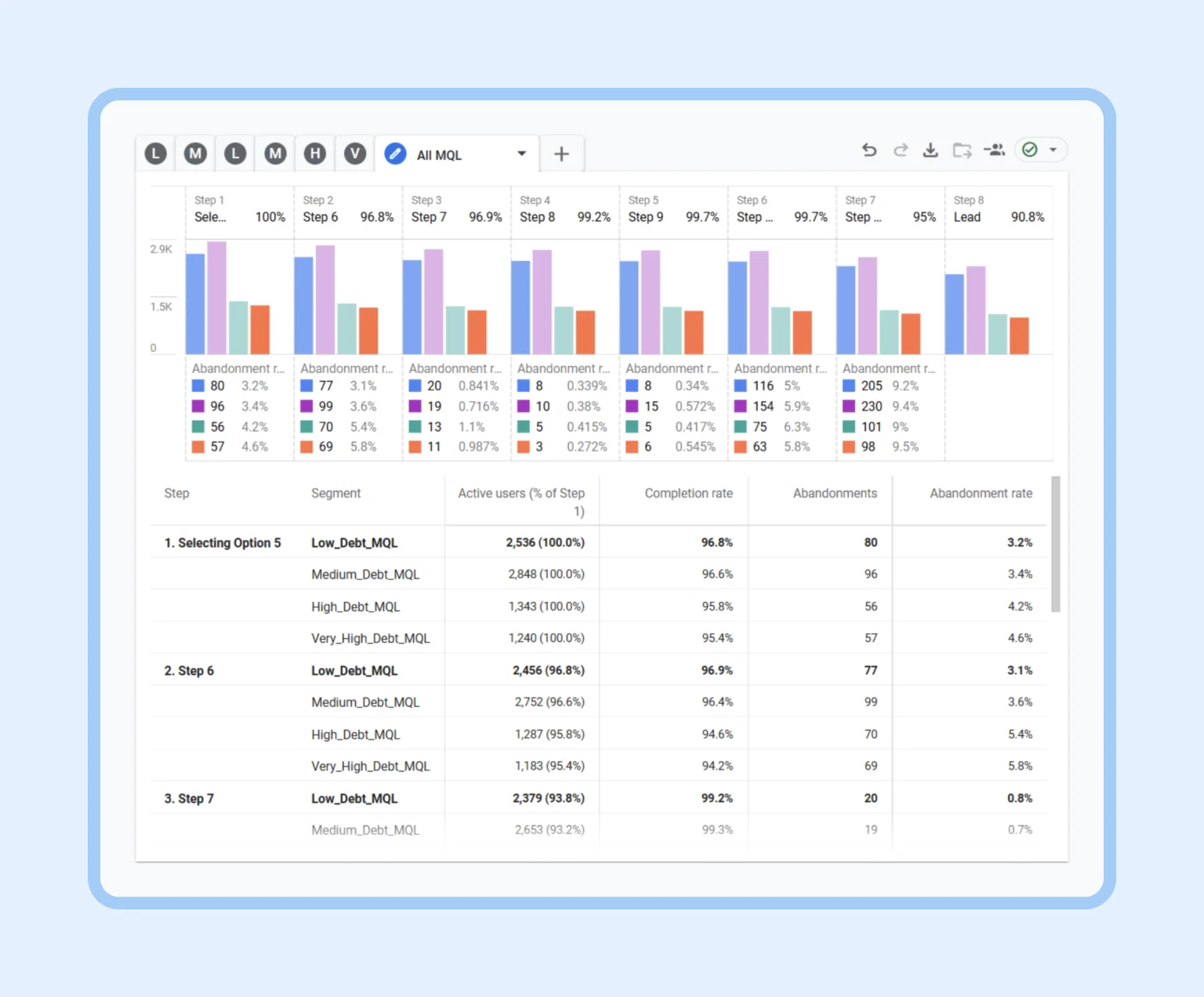
Thanks to the implemented events and the funnel report, the company gained complete visibility into how users progress through the form. The numbers clearly show what percentage moves from step to step and how many ultimately finish the process. For example, it might turn out that 100% of users who choose step 5 only 80% reach the final stage. This immediately highlights where the biggest drop-off of potential customers occurs.
Additionally, by passing extra parameters (such as the selected option at step 5), it’s possible to analyze the behavior of specific segments — for example, which user group is more likely to complete the entire flow. This provides valuable insights into which options or questions cause confusion or hesitation.
As a result, the company can make informed decisions to improve the form. If a particular step shows a high abandonment rate, its UX can be revised: questions can be simplified or rephrased, helpful hints can be added, or a long stage can be split into two shorter ones. If many users choose a specific plan but then drop out, it may make sense to review the plan’s content or how it’s presented. In this way, detailed step tracking with GTM and GA4 helps increase form conversion: improvements based on funnel analysis lead to more customers successfully completing all steps and taking the desired action.